

Google Fax: Send and Receive Fax from Google
No long-term contracts — cancel anytime!
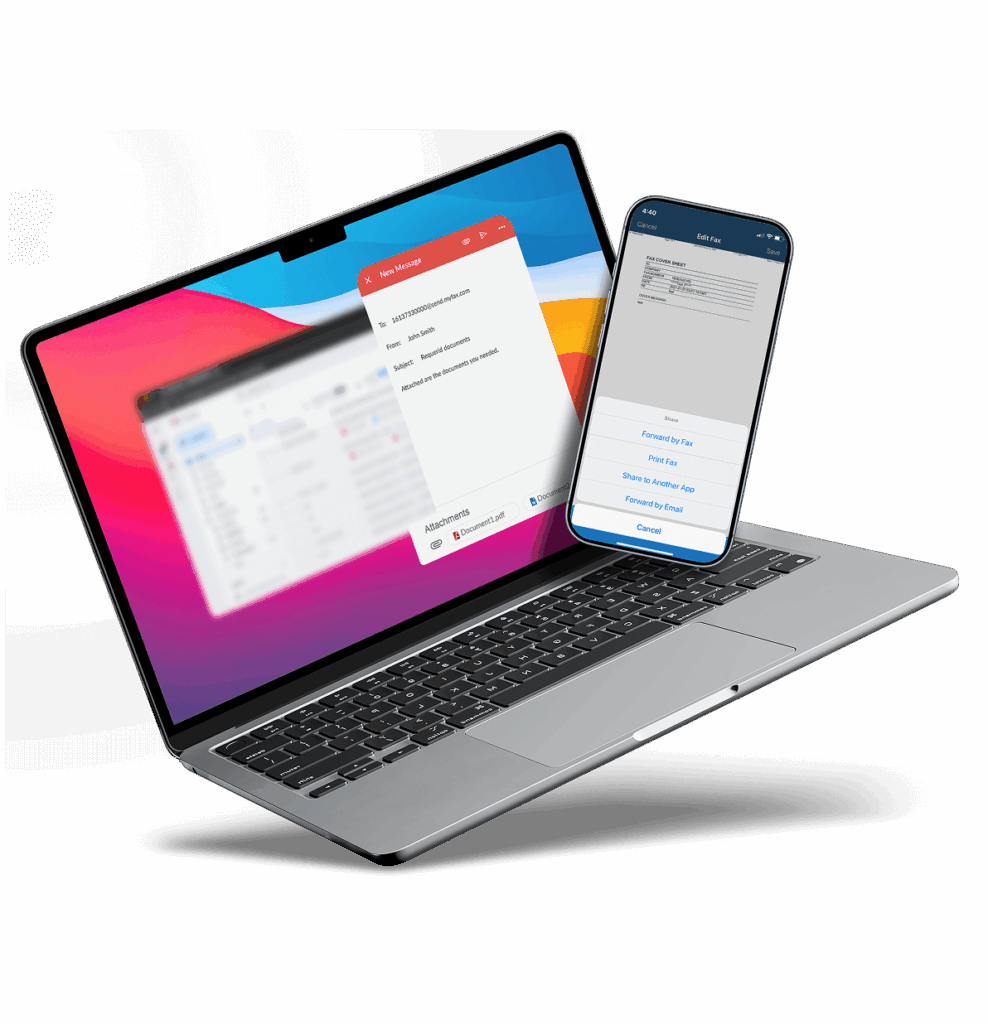
This Google fax setup brings faxing into your existing Google Workspace so you can handle important documents from Gmail, Google Drive, Voice or Docs without paper, phone lines, or extra equipment. This is how it works.
What Is Google Fax?
This setup can enable you to send faxes directly from Gmail, Drive or other Google apps, and receive them as PDFs in your inbox. One of the best parts is that you don’t need a fax machine, toner or a dedicated phone number. MyFax handles the technical side, so your files move safely through a cloud-based fax network.
Businesses, freelancers and organizations now rely on Google fax because it simplifies document sharing while maintaining legal and compliance standards. It fits naturally into workflows built on Google Workspace, which makes it perfect for remote teams, paperless offices and anyone looking to modernize communication.
Google Fax vs Traditional Fax
| Features | Google Fax | Traditional Fax |
|---|---|---|
| Setup | Quick online signup and connection to google | Requires fax machine, phone line and maintenance |
| File Handling | Digital files like PDFs, Docs, Sheets and Images | Paper copies only |
| Accessibility | Works anywhere with internet access | Limited to one physical location |
| Storage | Cloud-based, searchable archives | Paper files that can be lost or damaged |
| Security | Encrypted and password protected | Exposes sensitive documents to human error |
Google Fax provides speed and flexibility that traditional faxing can’t match. It’s cost-effective, eco-friendly and reliable enough for regulated industries like healthcare, law and finance.
5 Steps to Send a Fax Using Your Google Ecosystem
Google makes faxing easy when you pair your account with MyFax. You can send a fax through Gmail, Drive, Docs, Sheets or Chrome. Below are five simple ways to get it done.
Faxing from Gmail is the fastest and most popular option.
Here’s how:
- Sign up or log in to MyFax.
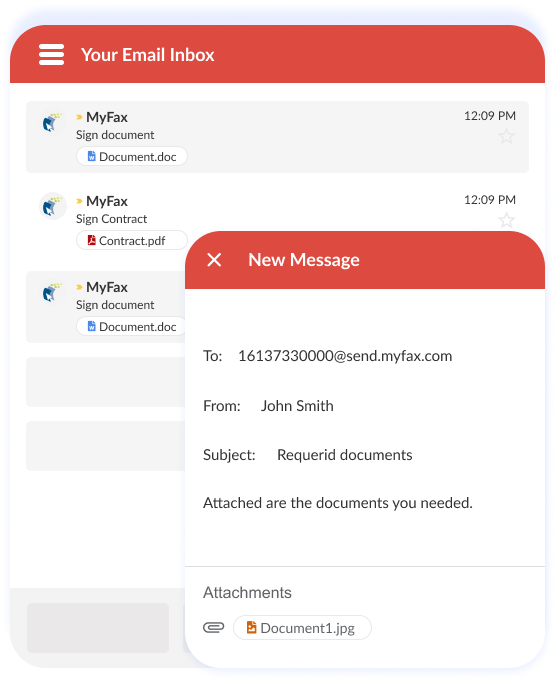
- Open Gmail and click Compose.
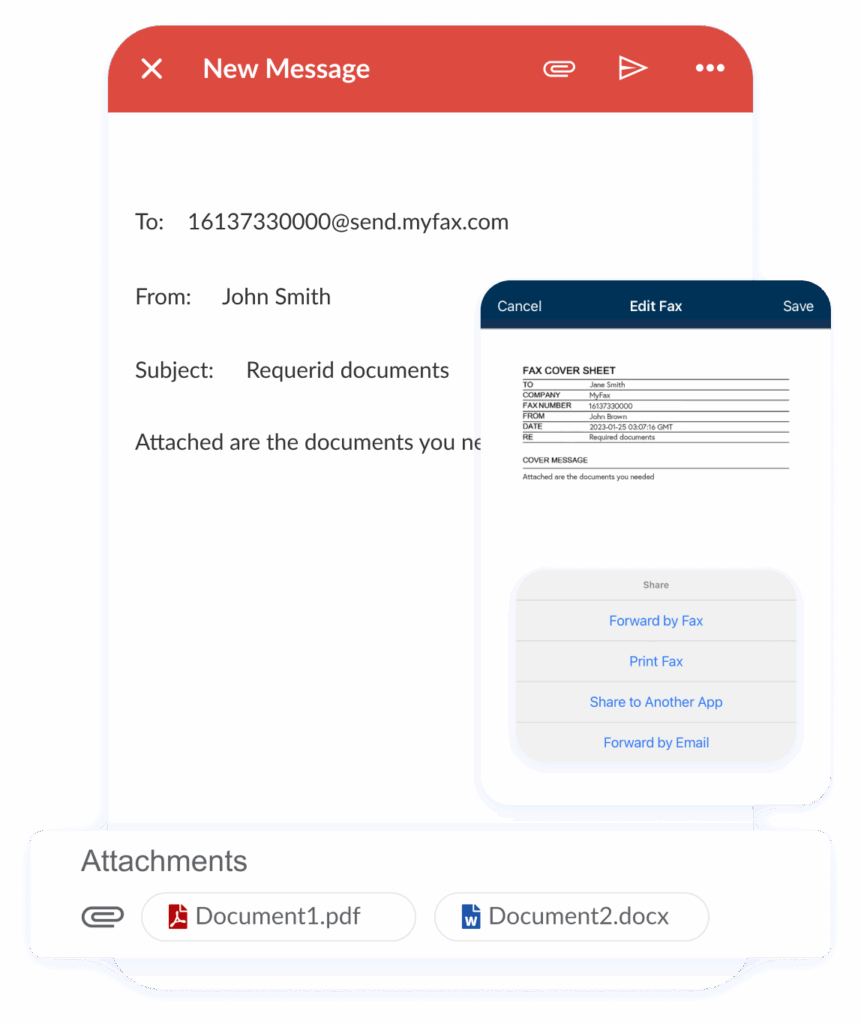
- In the “To” field, type the recipient’s fax number followed by @myfax.com (for example, [email protected]).
- Attach the document you want to fax, like a PDF, DOCX, JPG or TXT file.
- Add a message in the email body if you want a cover note.
- Click Send.
MyFax converts the email into a fax, routes it through a secure server and delivers it to the recipient’s fax number. You’ll get a confirmation email once delivery is complete.
This process, often called Google fax from Gmail, is ideal for professionals who already manage daily communication through their Google inbox.
If your documents live in Google Drive, you can fax them straight from storage without downloading. To send a fax from Google Drive, follow these steps.
Steps:
- Log in to MyFax and install the MyFax integration or Chrome extension.
- In Google Drive, right-click the document you want to fax.
- Select Open with → MyFax.
- Enter the recipient’s fax number and verify the file details.
- Click Send Fax.
The MyFax system delivers the file as a fax to your recipient’s number and keeps a copy stored securely in your account.
This option is convenient when you collaborate with others in Drive because you can send final versions directly without leaving the workspace.
When your work happens inside Docs or Sheets, MyFax integrates directly so you never need to export files.
To fax from Google Docs:
- Open your document in Google Docs.
- Go to Add-ons → Get add-ons → MyFax and install it.
- Once installed, open the MyFax panel from the Add-ons menu.
- Enter the fax number of your recipient.
- Select your document settings, then click Send Fax.
To fax from Google Sheets:
- Open your spreadsheet.
- Use the same MyFax add-on to launch the fax panel.
- Choose the sheet or range of cells you want to send.
- Confirm your fax number and click Send.
You can fax budgets, order forms, timesheets and reports directly from within Google Workspace. The process keeps files digital, prevents printing errors and preserves formatting.
Google Voice by itself does not support faxing. However, you can still manage calls and faxes in the same ecosystem by pairing Google Voice with MyFax.
Here’s how it works:
- Google Voice handles your calls and voicemail.
- MyFax assigns you a separate fax number that you use for faxing.
- Both accounts connect to the same Google login, so all communication stays organized.
Setup steps:
- Create a MyFax account and select a local, international or toll-free fax number.
- Keep your Google Voice number for phone calls.
- Route incoming faxes through your MyFax number so they arrive in your Gmail inbox as PDFs.
This setup works best for professionals who need a single dashboard for both calls and faxes. You can access messages, faxes and contacts across both services with no need for multiple apps.
The MyFax Chrome extension lets you fax files without leaving your browser. It works seamlessly with Google Drive and Gmail.
To use it:
- Add the MyFax extension from the Chrome Web Store.
- Log in to your MyFax account.
- Open any file or page you want to fax.
- Click the MyFax icon in your browser toolbar.
- Enter the fax number and press Send Fax.
You’ll receive a confirmation email once the fax has been sent. The extension saves time when you move between Google tools or need to fax documents from different tabs.
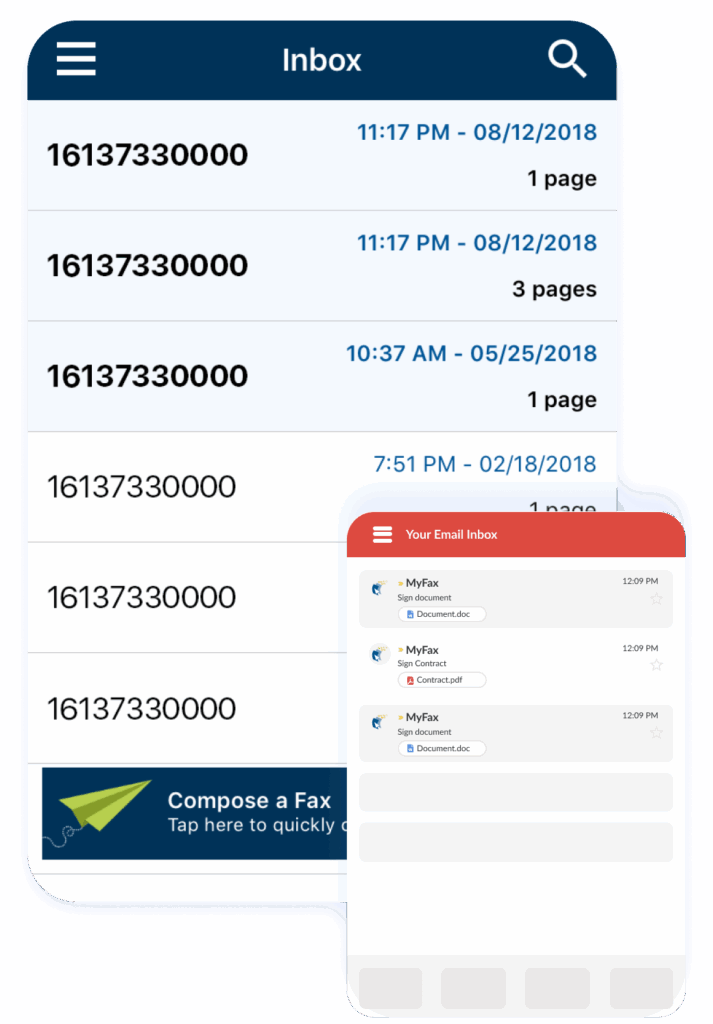
How to Receive a Fax with Google
From there, you can open, download or forward the file like any other email attachment. You can also move it to Google Drive for cloud storage or team access.
Key benefits include:
- Instant notifications when new faxes arrive.
- No busy signals or paper jams.
- Secure, encrypted delivery to your inbox.
- Cloud storage and backup through your MyFax dashboard.
Every fax you receive through MyFax also remains stored in your account history. You can search by sender, date or keyword at any time. That means you never lose an important record or need to dig through paper files again.
Why MyFax Works Best with Google Faxing Services
Here are five reasons to choose MyFax for Google Faxing.
There’s no complex installation or third-party software. MyFax works inside your browser, which keeps all your Google data synced.
The entire process, from signup to first fax, takes only a few minutes.
For businesses that value reliability and ease of use, MyFax offers a straightforward way to manage fax communication without the hassle of phone lines or extra hardware.
You can also switch between email, the MyFax web portal and mobile apps. That flexibility makes it easy to work from home, the office or while traveling. For Google users who work remotely, this access helps make sure you stay connected to your documents anywhere.
Plans include generous monthly fax limits and options to add more pages as needed. There are no contracts or cancellation fees, which means you stay in control of your account.
Why Google Fax is the Future of Document Transmission
With MyFax, every step happens digitally. You send, receive and store files without leaving your workspace. You can collaborate on Google Docs, save records in Drive and manage correspondence through Gmail.
The result is a faster, cleaner and more reliable way to share official documents.
FAQs About Google Fax Services
Google doesn’t charge a fee because it doesn’t operate its own fax service. You’ll need an online fax provider like MyFax. Prices vary depending on how many pages you send and receive each month, but plans are affordable and flexible.
Yes. MyFax works with Gmail, Drive, Docs and Sheets. Once you connect your account, you can fax directly from those apps without downloading or printing files. This setup keeps your workflow simple and fully digital.
Yes, when you use MyFax. Faxes move through encrypted connections, and files remain private within your account. You can also add password protection or delete old faxes when you no longer need them.
When you sign up, MyFax assigns you a dedicated fax number. You can choose a local or toll-free option depending on your business needs. That number handles both incoming and outgoing faxes through your Google tools.
Yes. MyFax offers a free trial that lets you send your first fax at no cost. It’s a quick way to experience how Google Faxing works and decide if it fits your communication needs.