


Send & Receive Fax Directly from your Mac Devices
No long-term contracts — cancel anytime!
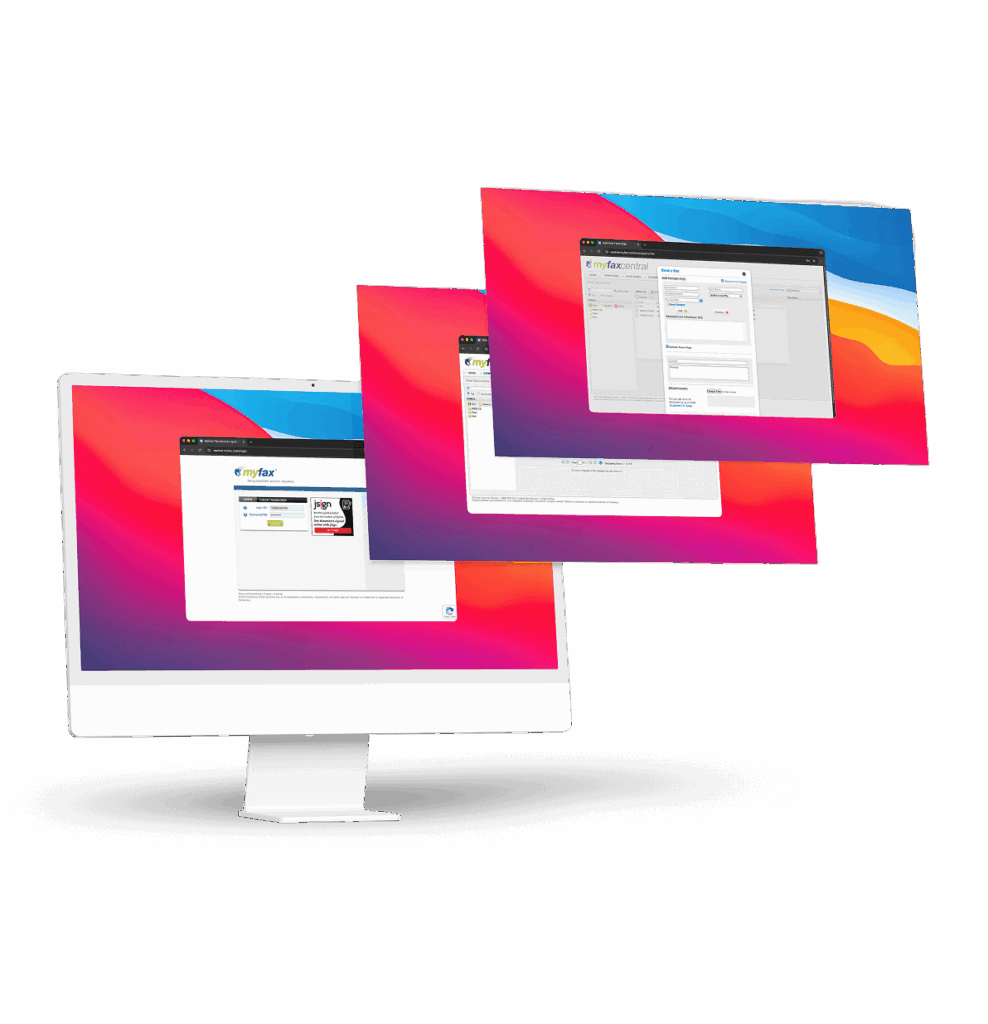
For Mac users, whether that’s a MacBook Pro, MacBook Air, iMac, or Mac mini, you’ll need to know how to efficiently send and receive faxes without tracking down a physical fax machine.
Instead, you can use a fax app for Mac, like MyFax, to fax from Mac. Now, your Mac machine is a powerful, secure, reliable fax machine to send and receive documents as easily as sending an email.
How to Send Fax from a Mac: 5 Steps Approach
How does MyFax work? You don’t need to be intimidated by the idea of sending a fax from Mac, because it’s simple when you use an online fax service. You can complete the entire process from your email, from a browser, or using a fax app for Mac.
There are five easy steps for how to fax from MacBook:
To begin your fax from Mac computer process, create an account with MyFax and get your dedicated fax number. You’ll use this number to receive incoming faxes and you can provide this number to individuals who want to send you faxes.
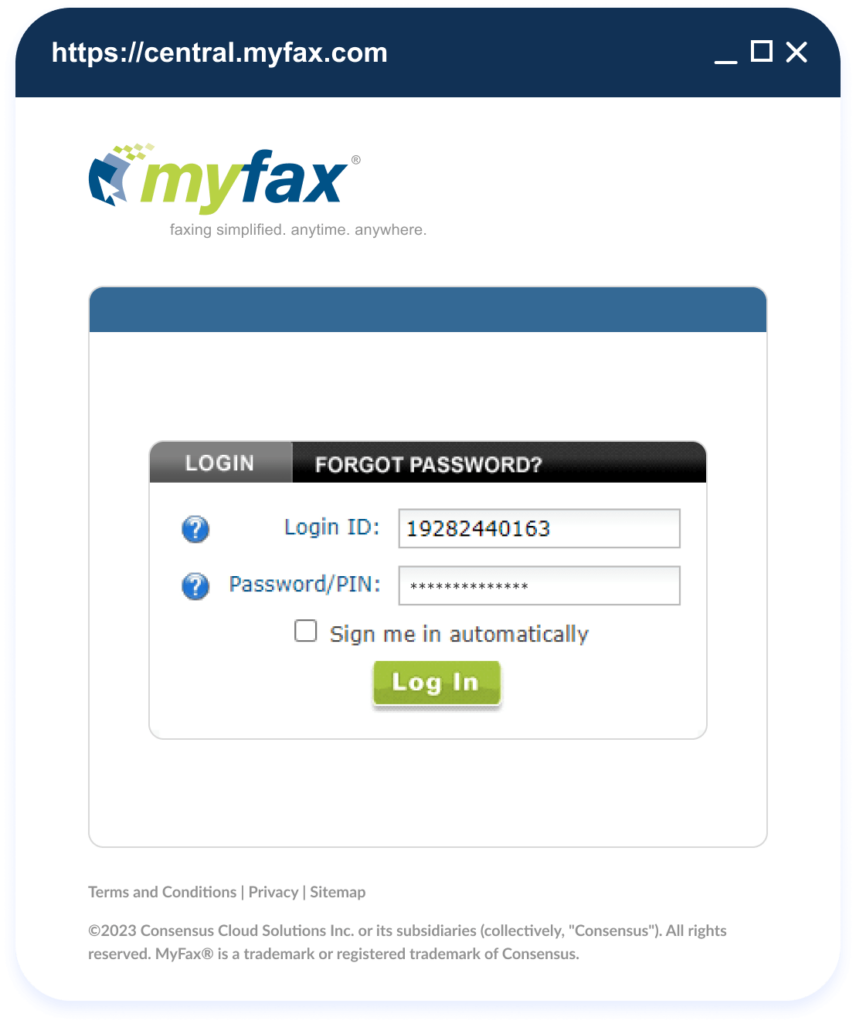
Log in to your new MyFax account using either a web browser, your email, or the MyFax app. If you’re emailing a fax, simply enter the recipient’s fax number followed by @send.myfax.com. For example: [email protected].
If your document is a physical paper, you can scan it into your computer or take a photo of the document with a mobile device. Then, save it as a PDF. You are now ready to upload your document to MyFax or attach it to an email.
You can choose either the MyFax web app or desktop software to send and receive faxes on your Mac:
- To use the web app, navigate to a web browser of your choice and log in to the MyFax dashboard.
- Use the App Store on your Mac to download the MyFax application.
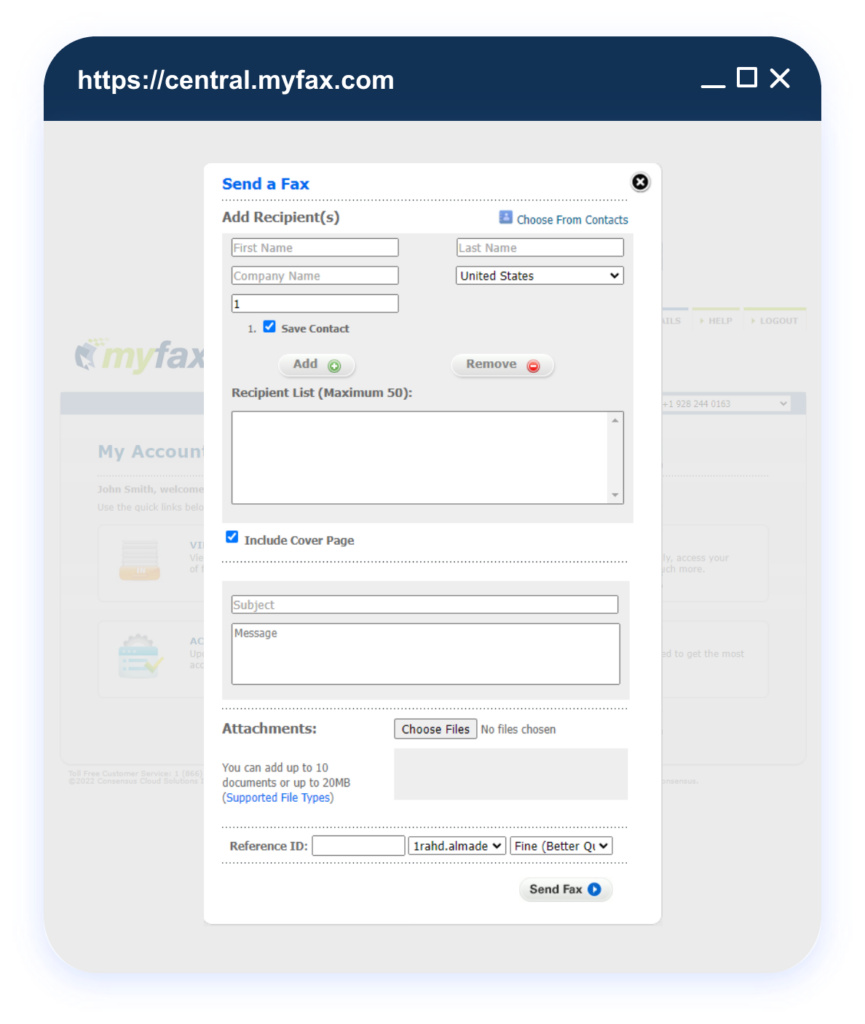
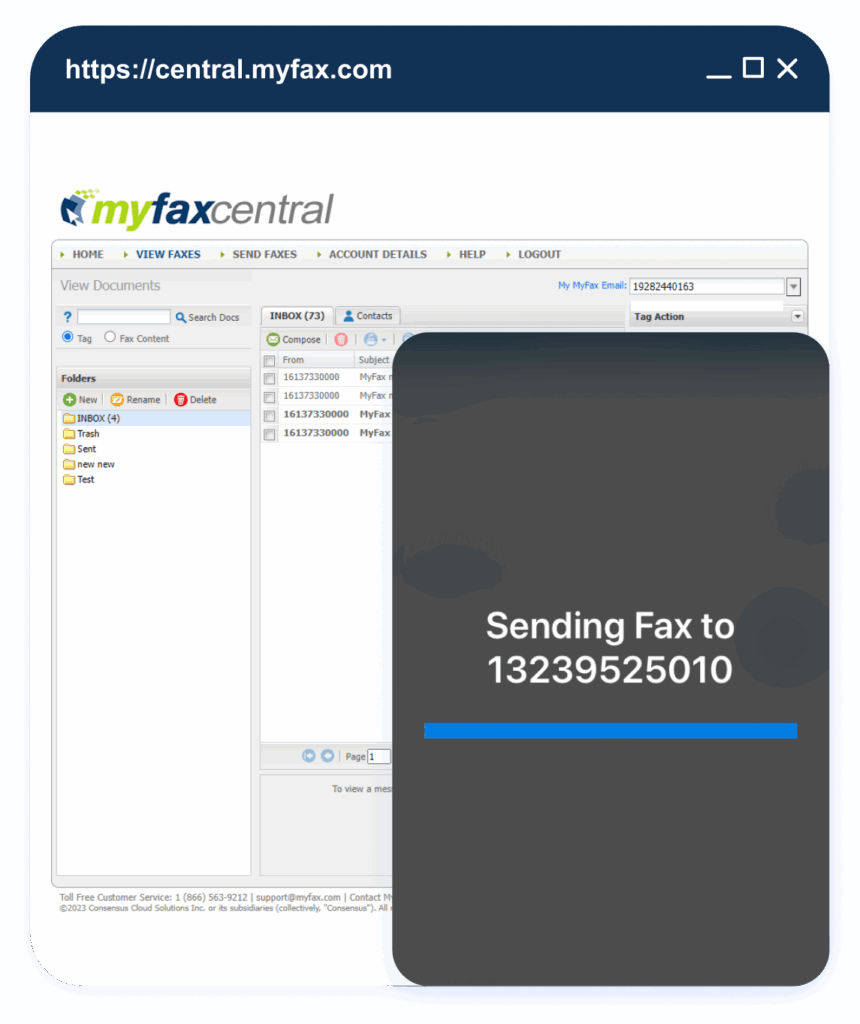
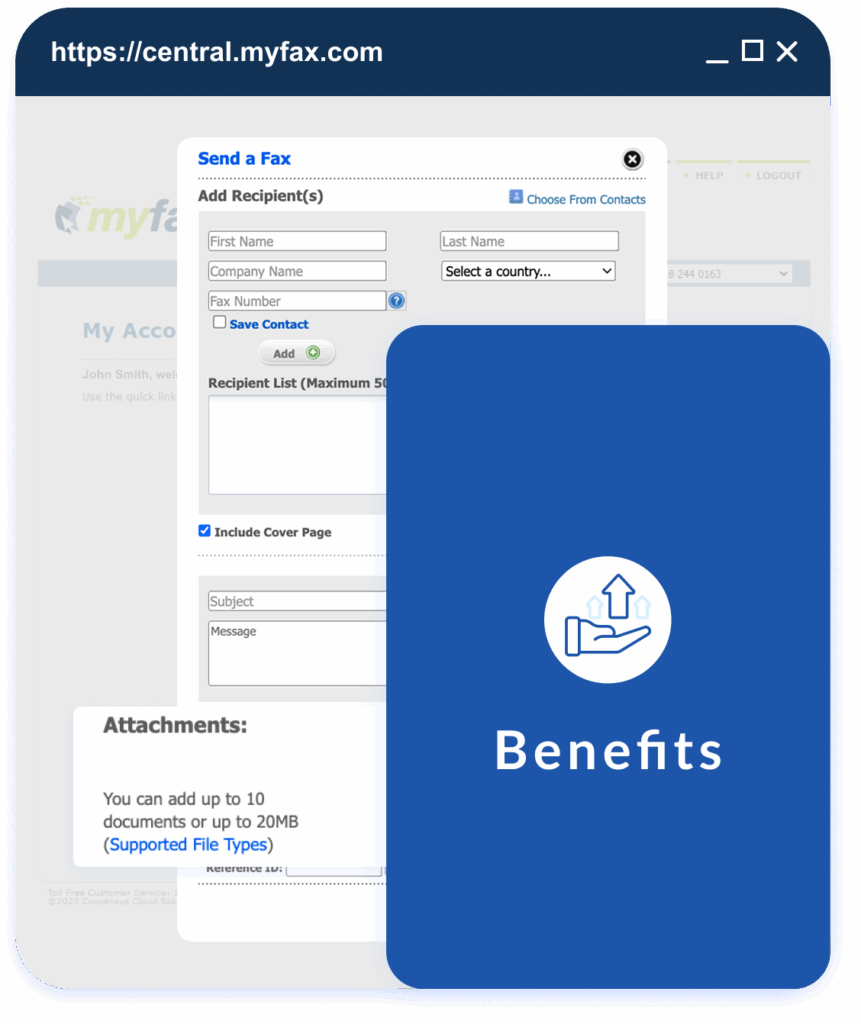
Double-check that you have your document attached, verify your recipient information is correct and then attach a cover page or confidentiality notice if needed. Once you are ready, click Send. MyFax will securely send your document to your recipient using the internet. You’ll get a delivery confirmation notification or email when your fax from Mac is successfully delivered.
How To Receive Incoming Fax from Mac Computer?
Receiving a fax from Macbook is easy as long as you have a dedicated fax number that is capable of receiving faxes. When someone sends a fax to your Mac using your MyFax number, it is automatically converted from an analog signal into a digital file like a PDF. MyFax then delivers the fax to your email inbox or app as a digital file.
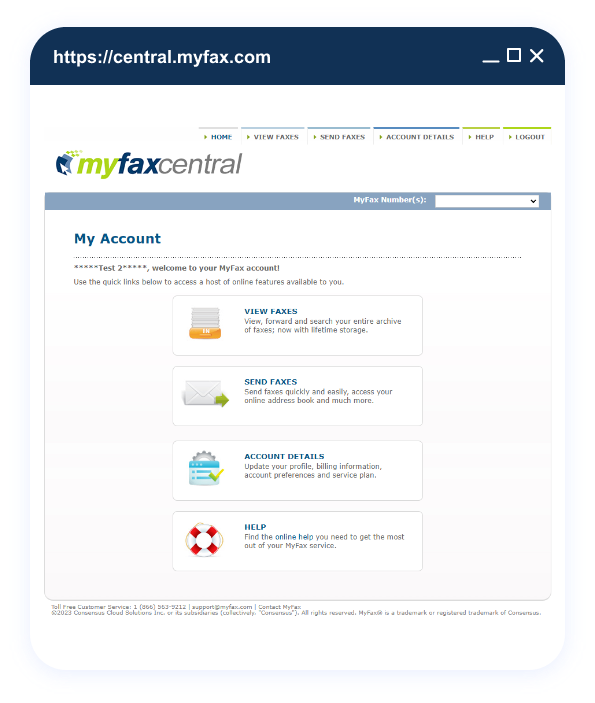
The easiest way to receive faxes on your MacBook Pro, MacBook Air, Mac mini, or iMac is to use MyFax. You can choose the subscription plan that fits your budget and needs.
You’ll need a fax number in order to receive faxes on your Mac. When you sign up for MyFax, you can choose to receive a fax number that you can give out. This is the fax number that your contacts will use to send you faxes.
Log in to your email inbox or use the MyFax dashboard to receive faxes sent to your internet fax number.
Click on the attached file in the email, or view it from the MyFax dashboard. Mac devices support standard file formats like PDF, so you can instantly view your faxes.
Once you receive your fax and have viewed it, you can save it to your Mac as a digital file or iCloud storage for long-term archiving. You can also print out a physical copy if needed.
Fax from Mac (Free Trial) — Fast, Secure, No Hardware Needed
Wondering how can I send a fax from my Mac for free? MyFax offers a free 14-day trial fax service, which lets you fax from Mac at no additional cost. This means you can test-drive the features of MyFax and fax from Mac free, including the speed and security of online faxing, without investing in any additional hardware.
Faxing from Your MacOS: Supported Files (PDF, DOCX, JPG, PNG)
When you send faxes from your Mac, you can leverage a number of supported file formats. Specifically, when you use MyFax on your Mac device, you can send and receive documents in any of these formats:
- Fax PDF from Mac
- Fax DOCX from Mac
- Fax JPG and PNG from Mac
- Fax TIFF, TXT, XLS and more from Mac
3 Ways to Send Faxes Online With and Without Mac
Are you wondering how to fax from Mac? Whether you’re on a Mac device or not, you can always send and receive faxes online. Here are three ways to send faxes:
This method, while possible, is rare on modern Mac devices. You will need a Mac machine that comes with a built-in fax modem, and you will need an active phone line connected to the computer.
This is the recommended, most flexible approach to send a fax from Mac. You can simply subscribe to an online fax service, upload your documents, and send faxes from the fax service via a browser or your email inbox.
There are online fax services that offer apps you can download on your Mac device. With these apps, you can upload documents directly to the app, then compose and send them as faxes. These apps often come with additional features like push notifications and integrations with other apps.
Advantages of Online Faxing from a Mac
You will find that sending faxes online from a Mac comes with significant advantages over physical fax machines. Here are just some of the reasons why online faxing beats traditional faxing:
How to Troubleshoot Common Issues When Faxing from Mac
While issues with sending fax from Mac are rare, you can experience some common pitfalls. Here are some of the common issues you might encounter and how to troubleshoot them:
Double-check the recipient fax number is correct, and is a fax number, not a phone number.
Convert documents to PDF file format to ensure high quality faxes.
Occurs when the recipient’s fax machine is off or busy. Wait 10 minutes, then resend.
If your document exceeds the upload size limit, you may need to compress the file or break the upload into smaller sections.
Make sure you’re using your registered fax number and that the recipient address is formatted correctly.
Why Choose MyFax for Faxing from Your Mac?
With MyFax, you don’t need a physical fax machine to send and receive documents. You can reduce office clutter, eliminate costs, and improve your environmental impact by using an online fax service like MyFax.
MyFax works where you do, with availability on an internet web browser or your email inbox. You can send and receive faxes from your iPhone or Mac device using MyFax, which seamlessly integrates into your existing workflows.
MyFax offers improved security and reliability features including encryption (using TLS/SSL), audit trails, and cloud document storage to ensure your sensitive and confidential documents are transmitted and stored securely. This means you can use MyFax in regulated industries like healthcare and finance with confidence that you’re complying with security standards.
With MyFax, you can send faxes from the MyFax dashboard and the email-to-fax option. You also get the ability to send faxes to international recipients without incurring additional fees or adjusting your software settings.
You can choose from several subscription plans, so you pay a low monthly cost for the fax volume you need. MyFax offers subscriptions that are significantly more cost-effective than a dedicated fax machine, phone line, maintenance costs, and supplies associated with traditional faxing.
The MyFax user interface is designed to be used by anyone of any technical skill level. It’s easy to navigate and is accessible for all.
MyFax customer support is available through email, online chat, phone, or a contact form on the website. These flexible customer support options provide a means for you to get answers anytime, anywhere.
FAQs for Faxing from Mac with MyFax
Yes, MyFax employs high-level encryption to secure your data in transit and at rest. Documents are faxed using a secure and private network. This is a much more secure method than using an open physical fax machine that is shared.
Yes, you can send and receive international faxes with MyFax on your MacBook. Make sure you include the correct international fax code before the country code and local fax number.
No, you only need a web browser to access the MyFax dashboard on your Mac. You can also use your existing email client along with the email-to-fax feature.
Yes, since MyFax is an online fax service, you can use your internet-connected device to send and receive faxes without a modem or phone line.
Yes. All Mac devices that are running macOS and connected to the internet are fully compatible with MyFax online faxing service. The specific Mac model does not affect the functionality of MyFax.
If you’re wondering how to fax from Macbook using email, here are the steps:
- Create a MyFax account and receive a faxing email address.
- Log in to your email client from the email address that’s linked to your MyFax account.
- Compose an email. In the “To” field, enter the recipient’s fax number followed by “@myfax.com”.
- Attach the document you wish to fax.
- Click “Send”.
Yes, MyFax automatically sends you a delivery confirmation email when your document is successfully transmitted to the recipient.