

How to Send Faxes from Adobe: Fast, Secure & Convenient
No long-term contracts — cancel anytime!
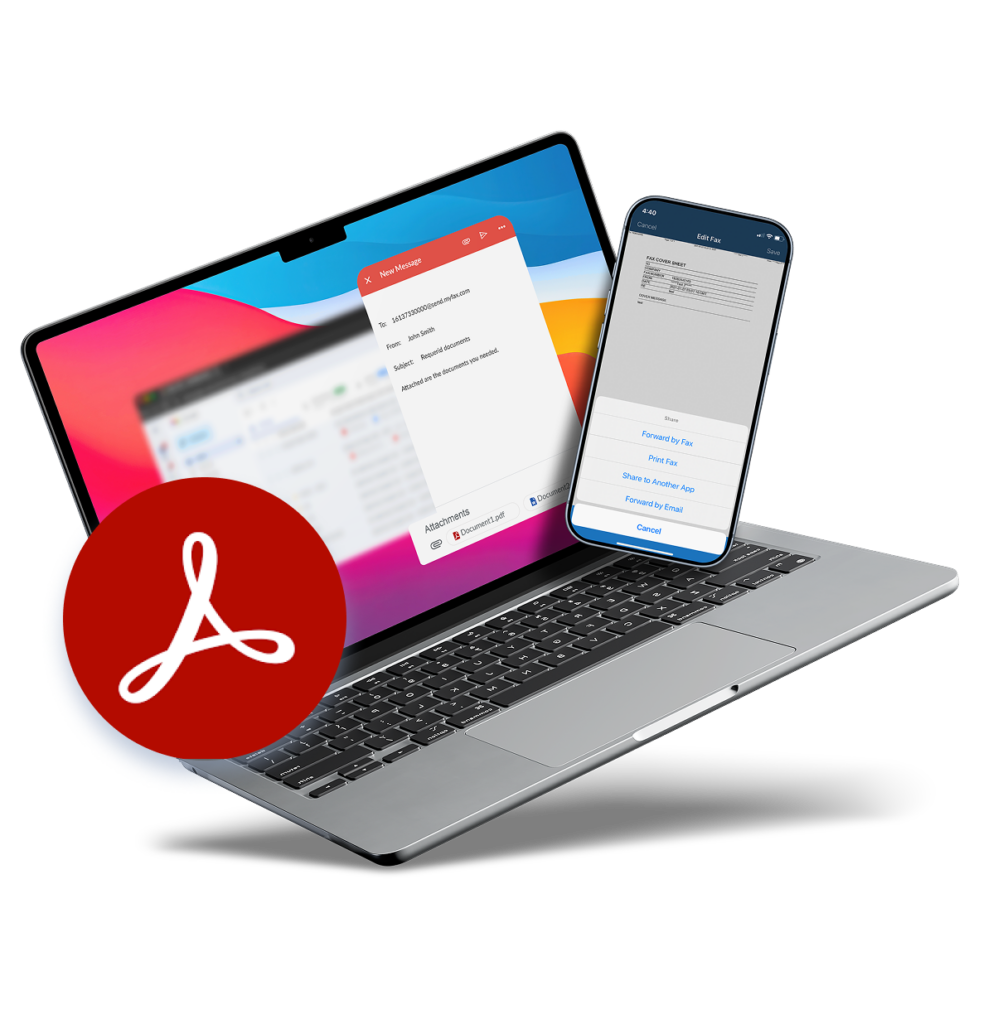
Companies that rely on the security and reliability of faxing often struggle to send fax messages from their preferred productivity applications. A good example of this is Adobe Acrobat, which allows users to edit PDF files but doesn’t have a built-in fax service that enables them to send documents to their contacts. So if you’ve ever wondered, ‘does Adobe have a fax service?’ then you’re out of luck. However, Adobe fax is made possible by pairing the app with an online faxing solution.
Faxing remains critical in highly regulated industries like healthcare, legal and real estate. It can be frustrating for users to edit documents in applications, only to struggle with sharing files via fax. But the challenge of ‘can you fax from Adobe’ is solved by making online faxing as simple as sending an email. Read on to discover how to fax from Adobe Acrobat.
How To Fax From Your Adobe Apps?
Pairing an online fax service, such as MyFax, with Adobe Acrobat makes it easy to fax with Adobe. The transformed Adobe fax app allows you to send fax messages directly from the application, streamlining your business communication. Here’s how to use the Adobe fax service with your MyFax account:
Sending a fax from Adobe Acrobat makes it easy to quickly share edited PDFs with your contacts and streamlines your document management processes. To fax from Adobe Acrobat:
- Open a PDF document in your Adobe Acrobat or Adobe Acrobat Pro app.
- Ensure the PDF document is ready to send as a fax message.
- Click on the ‘File’ menu item and select ‘Print.’
- Select MyFax as your preferred printer option.
- Click the ‘Print’ button and follow the prompts to upload your PDF document and send it as a fax message.
- Open your MyFax app, start writing a new message and upload the PDF document as an attachment.
- Enter your recipient’s fax number, hit ‘Send’ and the PDF will be sent to your contact as a fax message.
Sending a fax from Adobe Reader is especially convenient when managing your PDF documents. Here’s how Adobe fax works from Adobe Reader with MyFax:
- Open a PDF document in your Adobe Reader app.
- Ensure the PDF document is ready for faxing.
- Click on the ‘File’ menu item and select ‘Print.’
- Select MyFax from the list of available printing options.
- Click the ‘Print’ option to upload your PDF to your device.
- Open your MyFax app, compose a new message, and then attach the saved PDF.
- Enter your recipient’s fax number and hit ‘Send’ to share the PDF in a fax message.
Adobe Scan quickly scans documents like forms and receipts using your device’s camera. Pairing it with the MyFax online faxing service allows you to easily fax documents from your mobile phone, combining scanning and faxing. Here’s how to fax from Adobe Scan using MyFax.
- Scan your document using your mobile device’s camera in the Adobe Scan app.
- Save the scanned document on your device as a PDF.
- Open your MyFax app or log in to the MyFax service via your mobile browser.
- Compose a new fax message and upload the scanned PDF document as an attachment.
- Enter your recipient’s fax number in the ‘To’ line and hit the send button.
MyFax transforms your iPhone into a portable fax machine, allowing you to send Adobe PDFs at any time and from anywhere. Here’s how to use the Adobe fax service on your iPhone:
- Download and install the MyFax mobile app from your App Store, and sign in to your MyFax account.
- Use your preferred Adobe app to open the document you want to share via fax on your iPhone.
- Select the ‘Open in MyFax’ or ‘Send to MyFax’ buttons within the Adobe app.
- Open your MyFax app and compose a new message. The MyFax app will prompt you to upload the PDF document as an attachment.
- Enter your recipient’s fax number and hit the ‘Send’ button to send your PDF as a fax message.
3 Benefits of Faxing with Adobe Acrobat
Using MyFax to turn your productivity solution into an Adobe fax service allows you to send and receive fax messages from anywhere on any device. You no longer need to have a fax machine or use insecure electronic communication to share documents with your colleagues or clients. The benefits of faxing with Adobe include:
-
Document Security
Pairing Adobe and MyFax offers significant security benefits. Adobe Acrobat Pro digitally seals and signs documents to prevent PDFs from being accessed or edited by unauthorized users. And MyFax ensures secure document transmission, using enterprise-grade encryption technology to prevent unauthorized access. The digital faxing solution also eliminates the data privacy and security risks associated with printing fax messages on shared fax machines.
-
Digital Integration
The MyFax and Adobe fax app solution also helps you better integrate your digital workflows. You can seamlessly share fax messages with your existing contacts and send fax messages via email and other messaging tools. Integrating services with Adobe Acrobat helps you automate audit trails by logging when PDFs were sent, delivered and opened, helping you comply with data privacy regulations.
-
Ease of Use
The MyFax Adobe fax service removes the need for physical fax machines and costly office supplies. All you need is a computer or mobile device, an internet connection, an Adobe productivity app and a MyFax account to easily share PDF documents via fax. As a result, PDFs can be edited and signed and then sent by fax from anywhere and at any time.
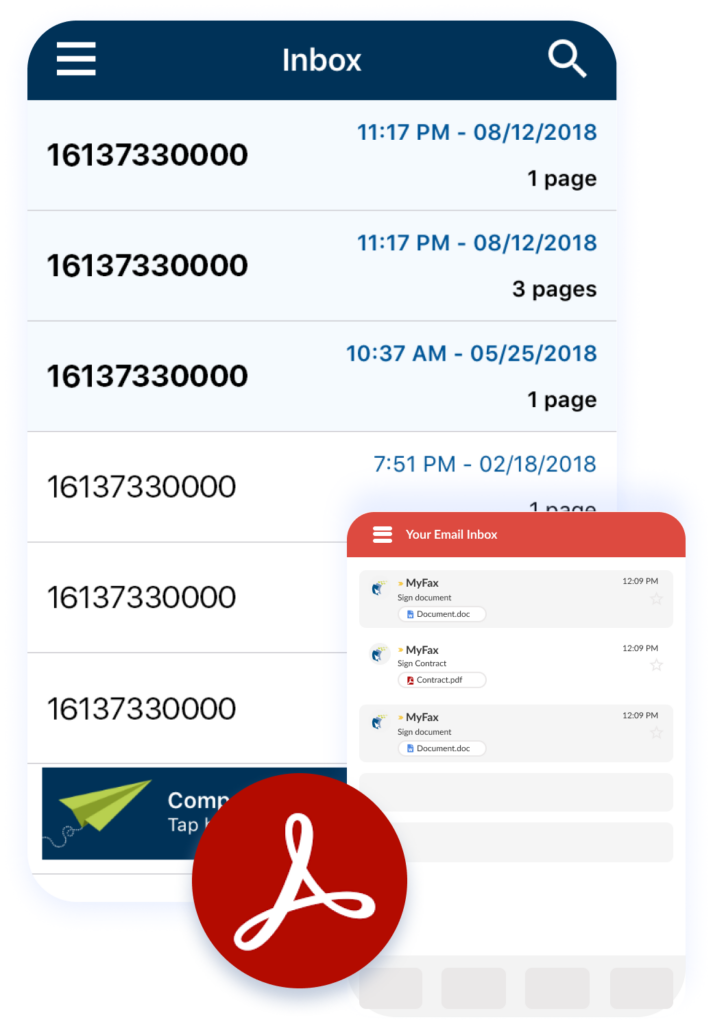
Steamline Adobe Document Faxing with MyFax Online Faxing Solutions
FAQ's About Adobe Fax
Yes, you can use Adobe Reader to fax a document using an online faxing service like MyFax. To send an Adobe fax message, open a PDF document in the app and ensure it’s ready for faxing. Click the ‘File’ menu and select the ‘Print’ option, then choose MyFax from the printing options. You can then upload the PDF and send it as a fax message in your MyFax app.
You can send faxes from your iPhone by pairing Adobe Acrobat with MyFax. With the MyFax mobile app downloaded from the App Store, use Adobe Acrobat to open a PDF and edit or sign the document. In Acrobat, select ‘Open in MyFax’ or ‘Send to MyFax’ and then open the MyFax app. Compose a new message, attach the PDF and hit ‘Send’ to fax from Adobe.
There is no Adobe fax app that allows you to send faxes from solutions like Adobe Acrobat, Adobe Reader or Adobe Scan. Instead, to solve the how to fax from Adobe challenge, you’ll need to pair your Adobe productivity apps with an online faxing service like MyFax.
Yes, you can send a fax from Adobe Acrobat on your Mac, by pairing the Adobe app with an online faxing service like MyFax. The Adobe fax service is possible if you open a PDF in Adobe Acrobat or Adobe Acrobat Pro on your Mac, select ‘Print’ from the File menu and choose MyFax as your preferred printer option. Open your MyFax app, compose a new fax message and upload the PDF document, then hit Send to fax with Adobe.
Yes, pairing Adobe Acrobat with MyFax offers significant security and data privacy benefits. This approach to how to fax from Adobe ensures documents are digitally sealed and signed in Acrobat, preventing unauthorized users from accessing or editing the PDFs. Then MyFax uses enterprise-grade encryption technology to prevent unauthorized access to data and documents. The Adobe fax service also removes the data privacy and security risks of printing fax messages on shared fax machines.